Team Roster
Manage Team → Team Roster (/leave/roster) — who is on which shift, on any
day, for your team. Requires employee:read. The page is for people with
reportees; HR and others who may view everyone's attendance see it too and open
on All Employees.
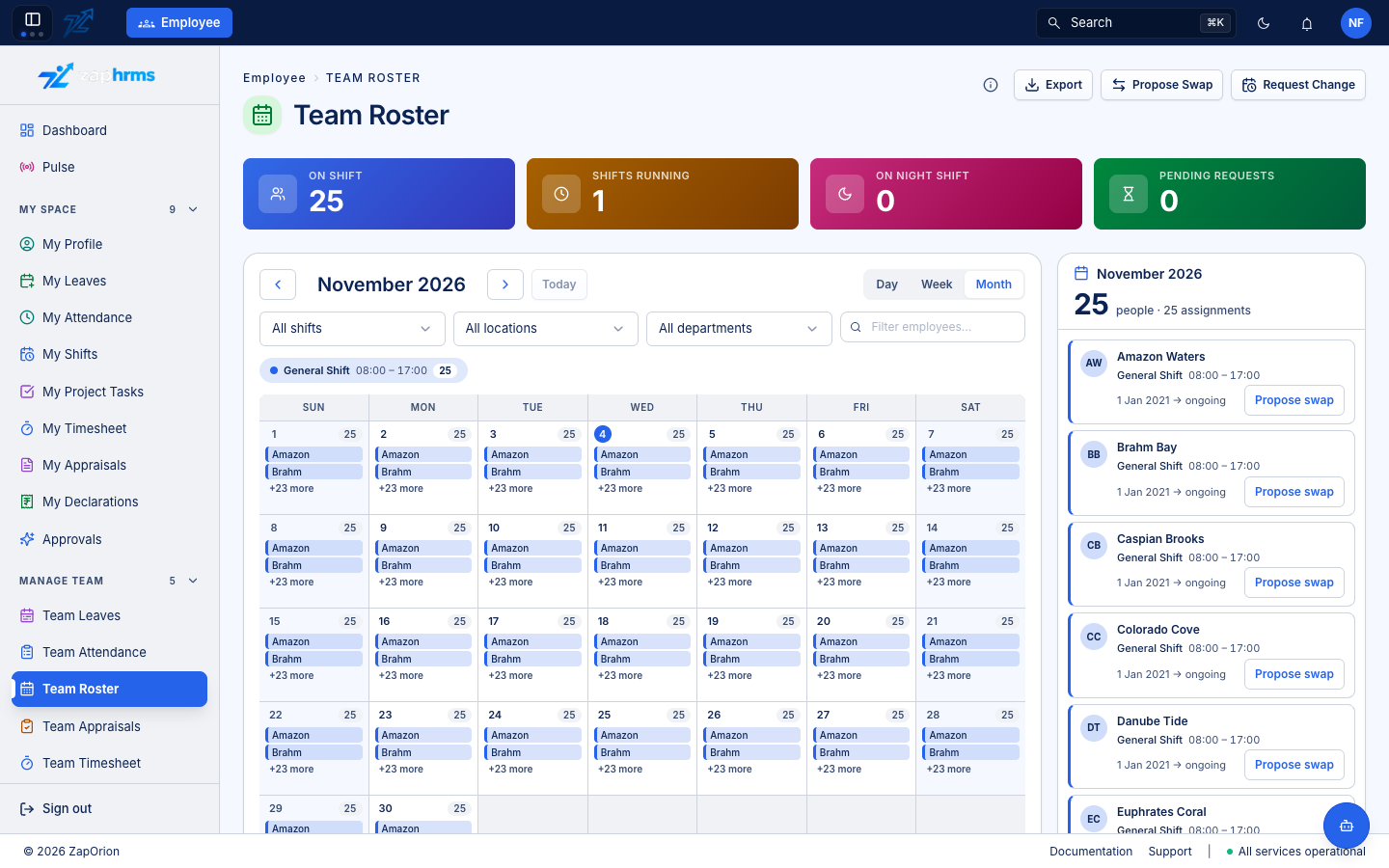
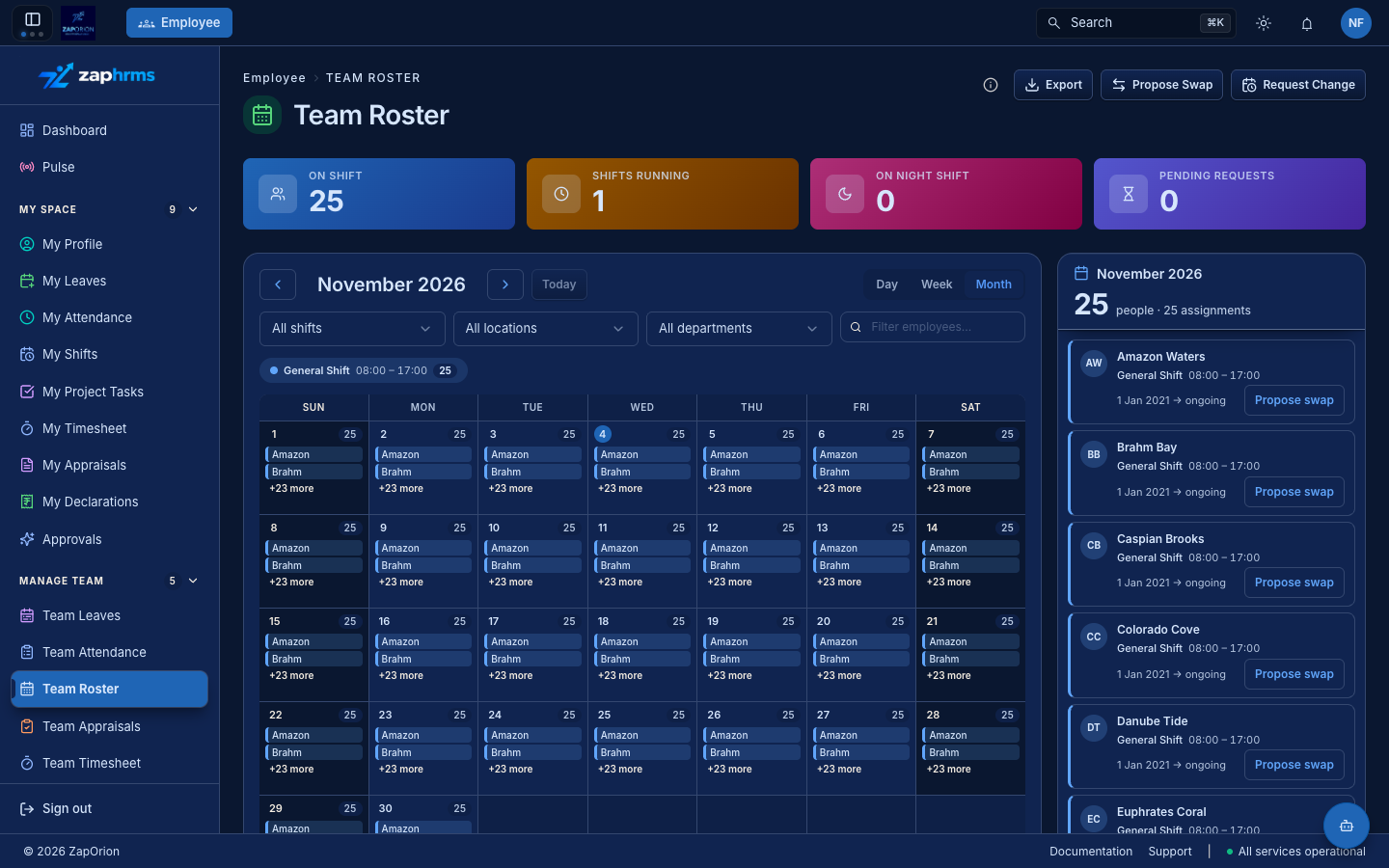
The four tiles
Across the period on screen:
- On shift — people who have a shift assigned.
- Shifts running — how many different shifts are in use.
- On night shift — people on a shift that runs past midnight.
- Pending requests — shift change and swap requests still waiting for a decision.
Choosing what you see
- Day / Week / Month — three views of the same data. The arrows and Today move the period; the view and date are in the page address, so you can bookmark or share one. Your last view is remembered.
- My Team / All Employees — My Team is you and your direct reportees. All Employees is offered to people who can view everyone's attendance or manage leave.
- Filters — by shift, location and department, plus a box to find specific employees.
- Legend — one pill per shift on screen, with its hours and head count. Click a pill to show only that shift; click it again to clear. Each shift keeps the same colour in every view.
The Export button downloads a CSV of the period exactly as loaded and filtered.
Month
One chip per person per day, with +N more where a day is busy and the day's head count in the corner of each cell. A small dot marks a day covered by a request that is still undecided. Click a day to select it (the side list follows); double-click to open it in Day view.
Week
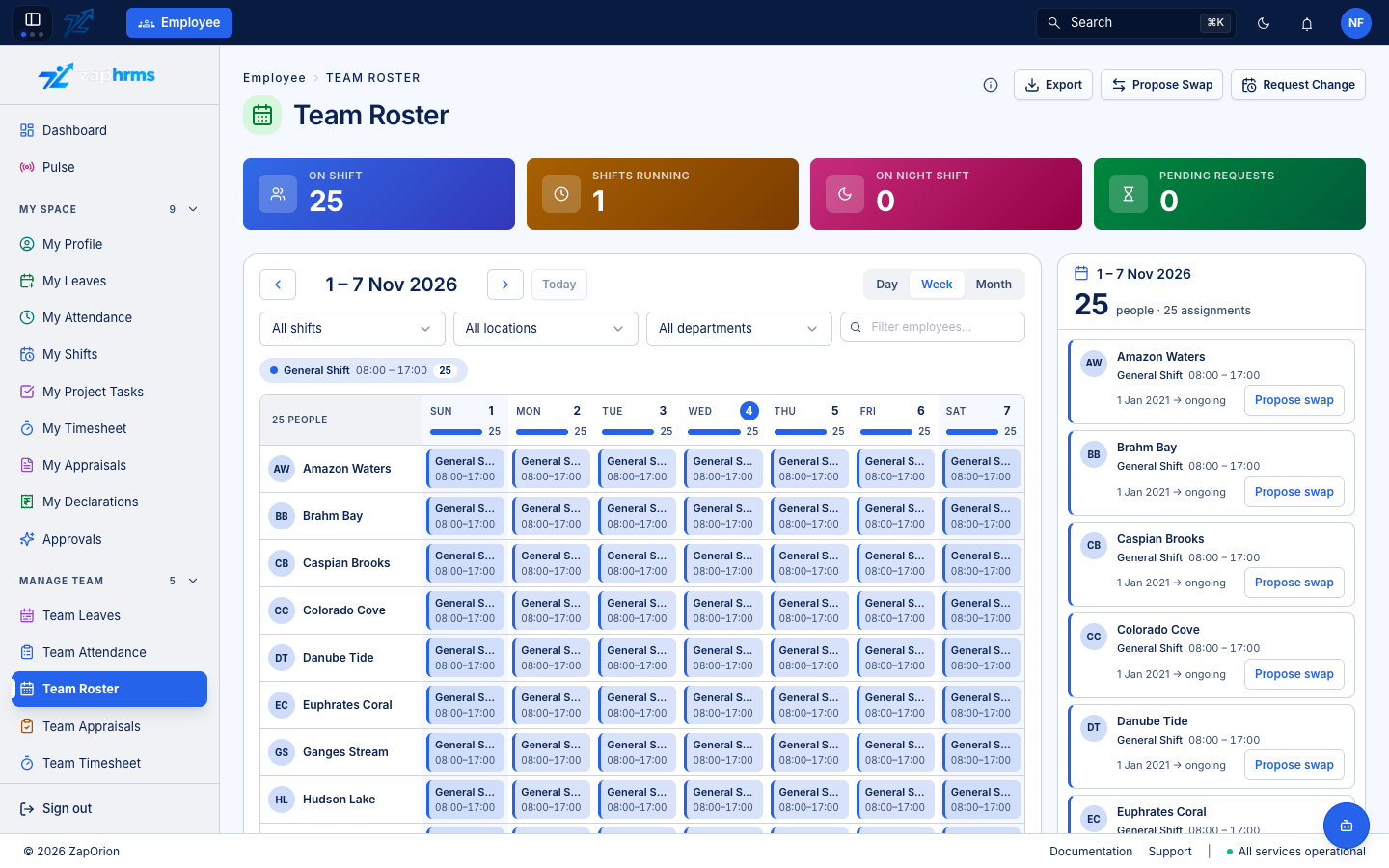
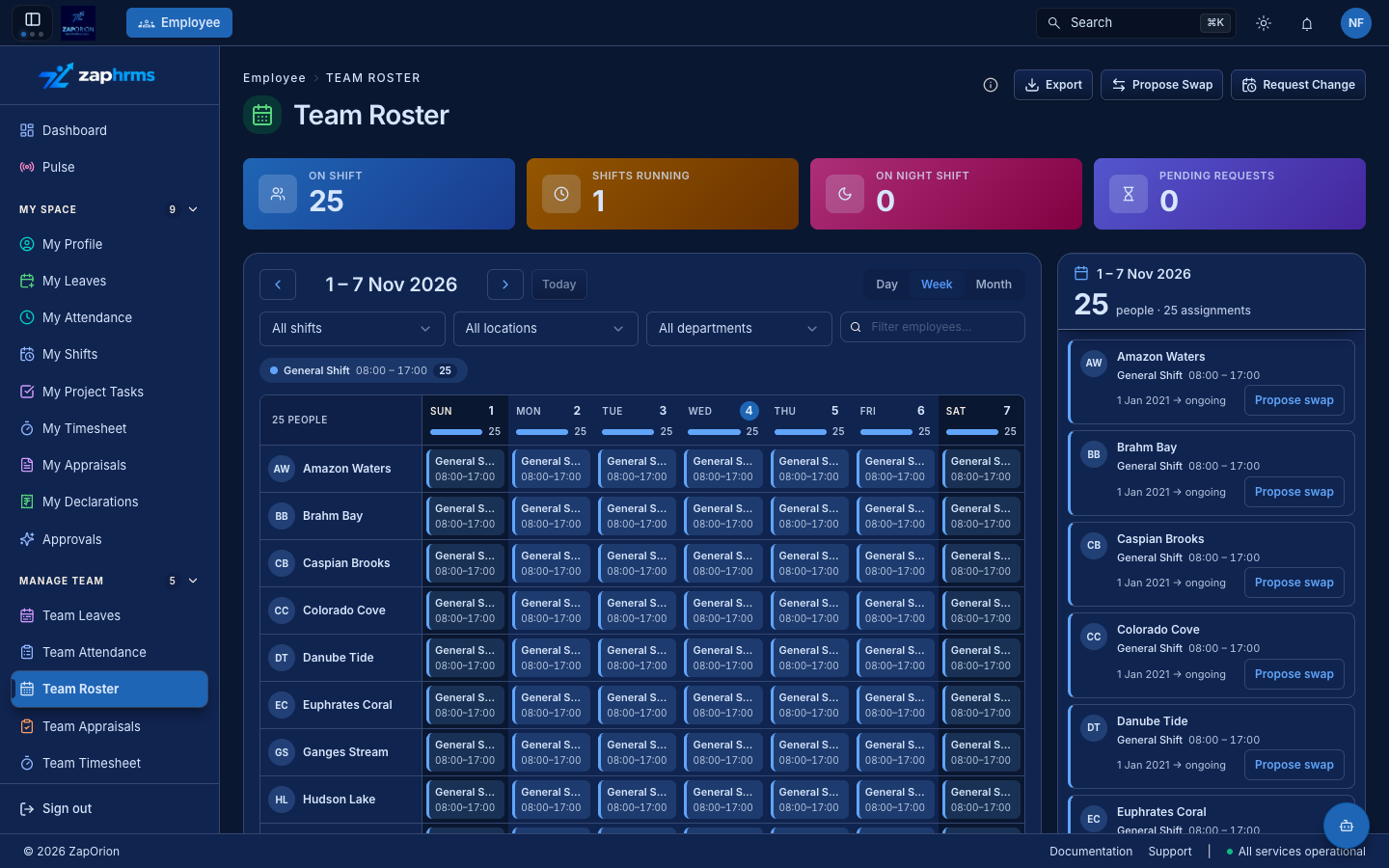
A staff schedule: a row for each person, a column for each day, and the shift as a coloured block with its name and hours. An amber dot shows a pending request. Click a person's name to open their profile.
Day
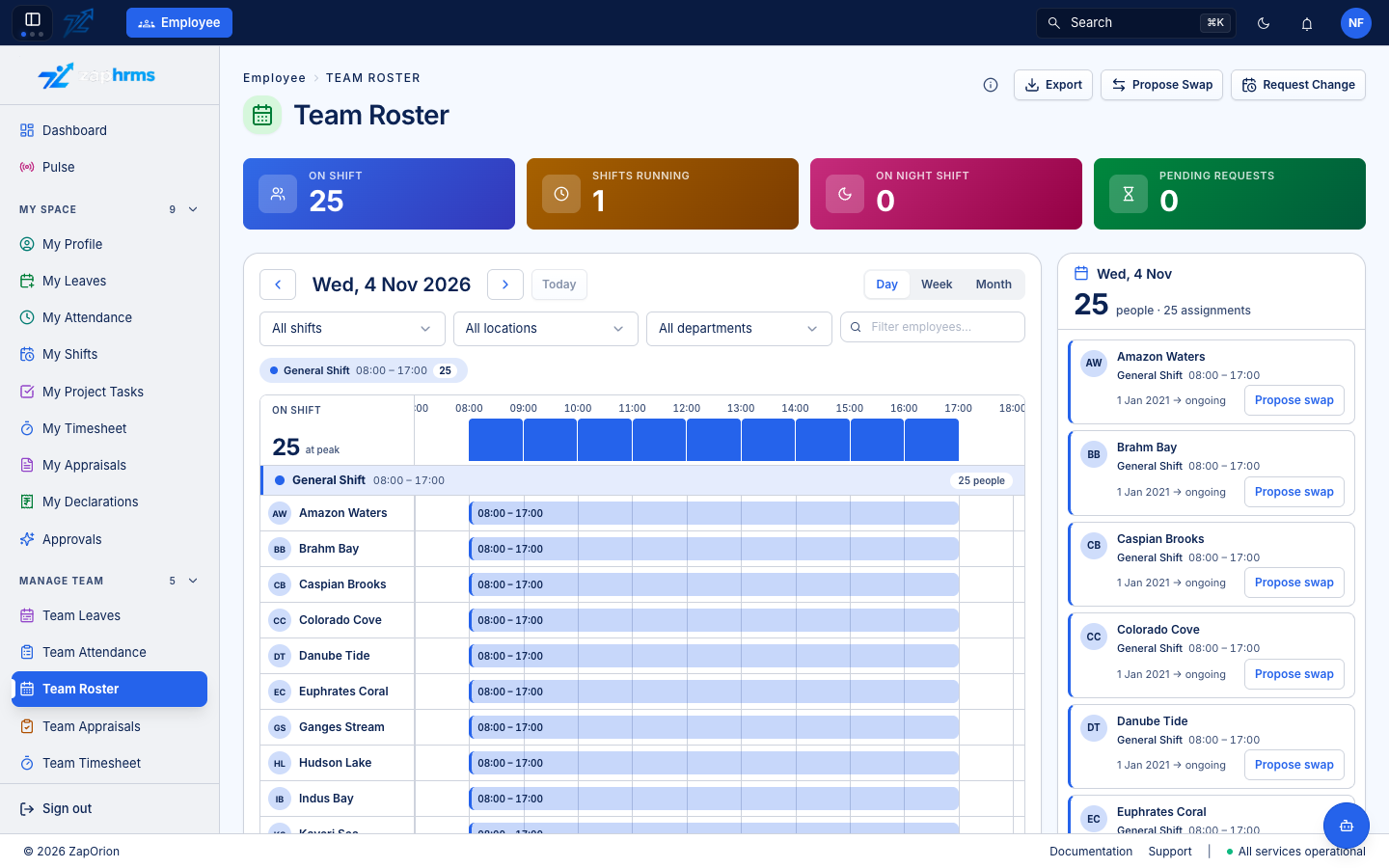
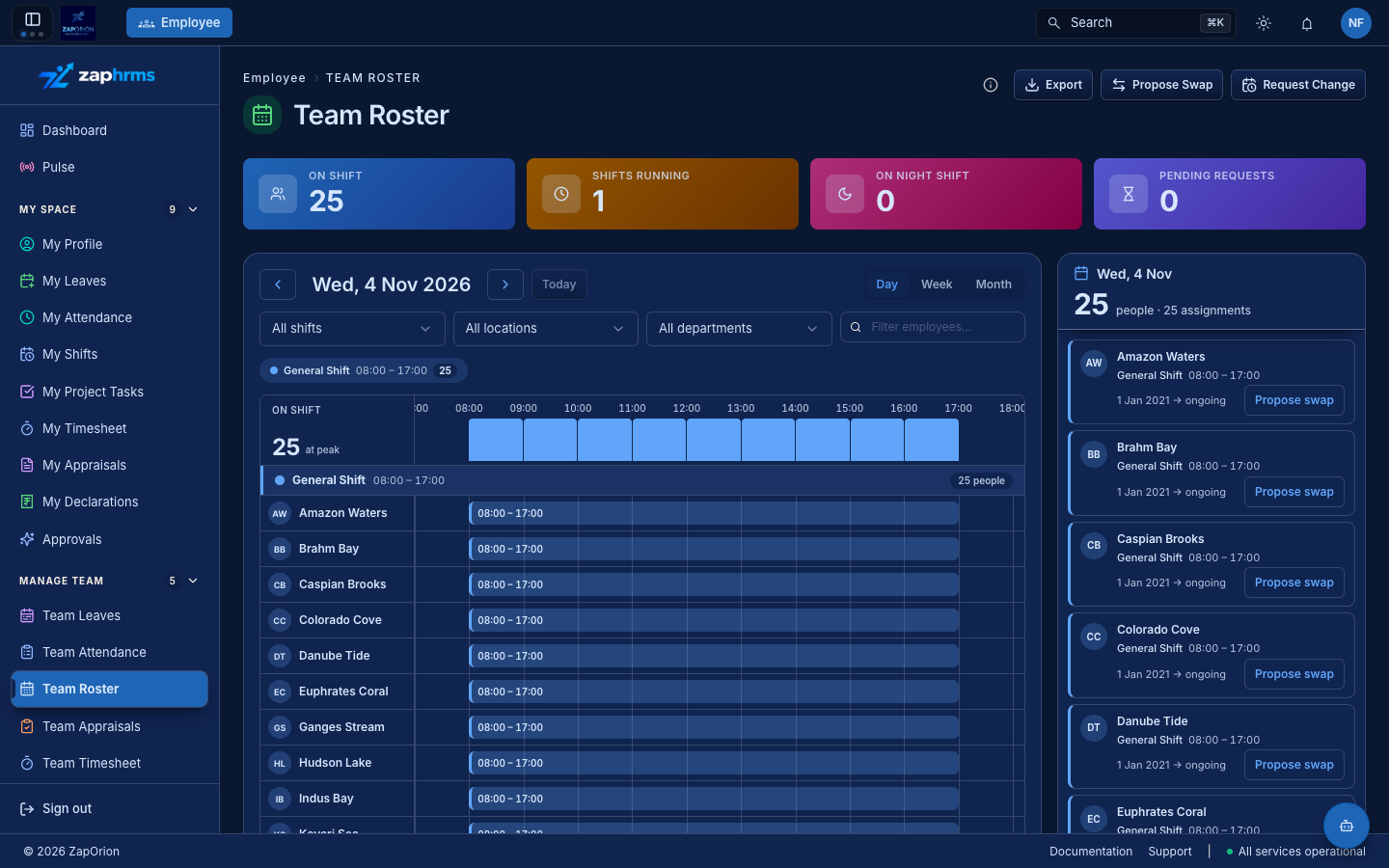
The day laid out on a clock: people grouped by shift, each as a bar from start
to end. A night shift runs past midnight and its hours show as +1. Above the
groups, a coverage strip shows how many people are on duty each hour and the
peak; on today a red line marks the current time.
The side list
For the selected day (or the whole period when none is picked) it lists each assignment: the person, their shift and hours, a Night marker for night shifts, the dates it covers and a Pending marker when a request is waiting.
Each row offers an action:
- Request change on your own row.
- Propose swap on a colleague's row — it pre-fills the colleague and the day.
Neither is offered for someone who already has a request waiting. With a day selected in Week or Month, Day view opens it on the clock.
Requests from the roster
Propose Swap and Request Change in the header work as described in My Shifts: changes and swaps go through approval workflows, a swap needs the colleague's acceptance and then the requester's manager. As a manager you decide them from Approvals.
Apply Shifts (HR)
Users with employee:admin also see Apply Shifts, which assigns a shift to
many employees at once. See Attendance Management.
:::note Limits A page of the roster holds 500 assignments. If a month holds more, the side panel says Showing the first N of M — filter by shift, department or location to see the rest. Employees with no shift assigned for the period do not appear. :::