Team Attendance
Manage Team → Team Attendance — day-by-day attendance for everyone who reports to you.
Views
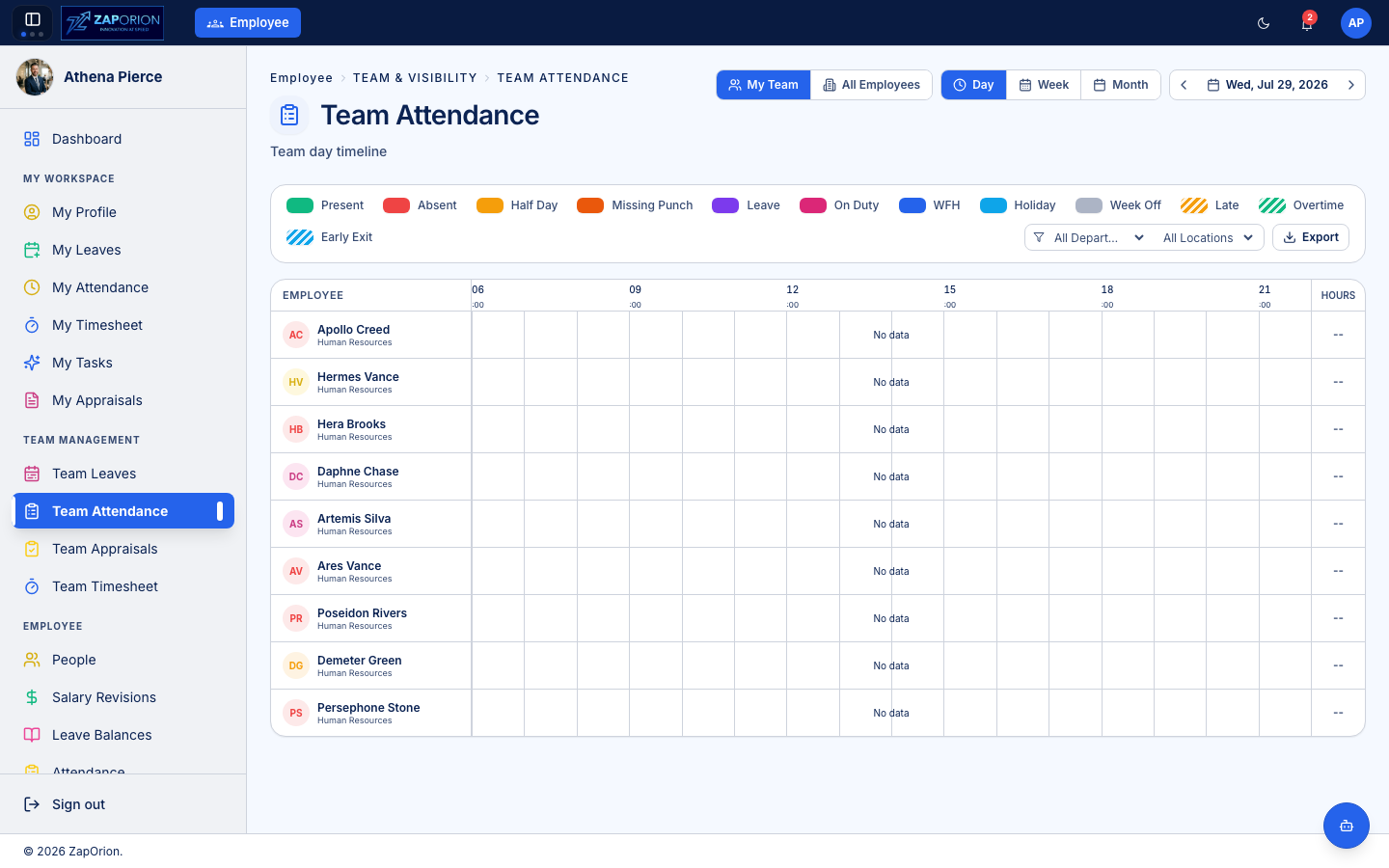
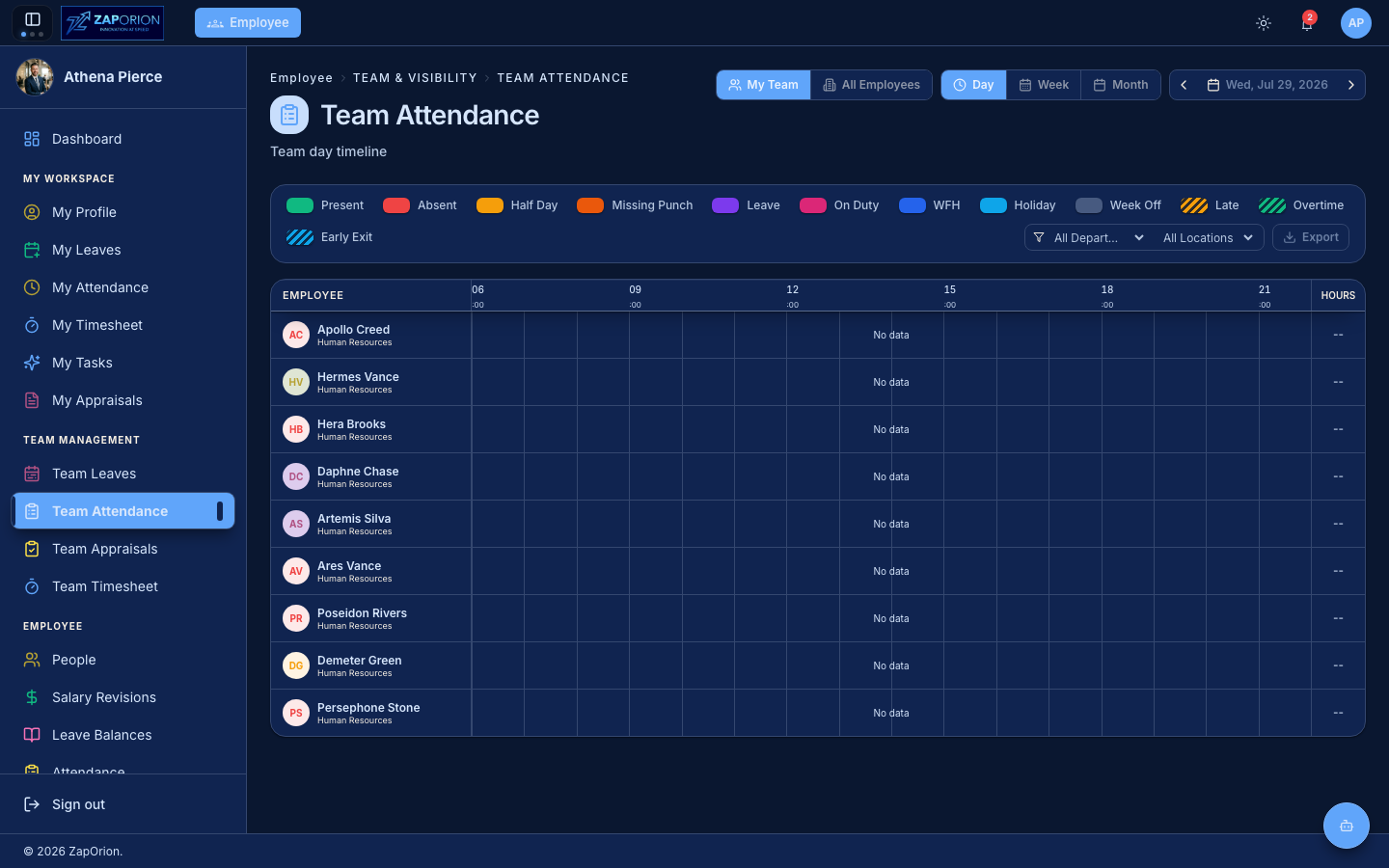
The page opens on the Day timeline; switch to Week or Month with the buttons at the top left, and move with the arrows (the date box shows NOW when you are on today).
- Day — a timeline for each person across the day, with their sessions drawn as bars on the hour scale and the Hours worked at the right. A day with nothing recorded says No data.
- Week / Month — a grid with a row per person and a column per day, each cell coloured by status.
The legend explains the colours: Present, Absent, Half Day, Missing Punch, Leave, On Duty, WFH, Holiday, Week Off, plus markers for Late, Overtime and Early Exit. Late arrivals and short days are judged against the person's assigned shift.
Click any person/day to open the full check-in/out timeline for that day. Organization-wide viewers (HR) also get a My Team / All Employees switch.
Search and filters
Type in the Employee box to find someone, or open Filters to narrow by Department, Location and Employment status. The badge on Filters shows how many are active; clear them from the same panel.
Regularize
Regularize raises a work from home, on duty or permission request for an employee — a manager files for their own reportees, and an attendance administrator for anyone. You can also click a day in the grid and choose to regularize that person and date. The request follows the same approval rules as one the employee raised themselves.
Export
Export offers:
- Current view — a CSV of the days and people on screen: date, shift, check-in/out, worked hours, break, late / early-exit / overtime and any manual override with its reason.
- All employees — the same for everyone (only for people who may view all attendance).
- Payroll summary… — one row per employee for a month or a date range, for the current view or all employees. The columns are named so that Payroll's attendance import reads the file directly (see Payroll Attendance).
Files open correctly in Excel (UTF-8 with a byte-order mark).
Approving corrections
When a team member adds a missed punch, requests a manual attendance entry, or applies for WFH / On Duty, the request routes to you. Act on it from Approvals → My Approvals; approved corrections update this view immediately.
Managers see their reportees only. Organization-wide attendance (and bulk uploads) is an HR function — see Attendance Management.