Finding Your Way Around
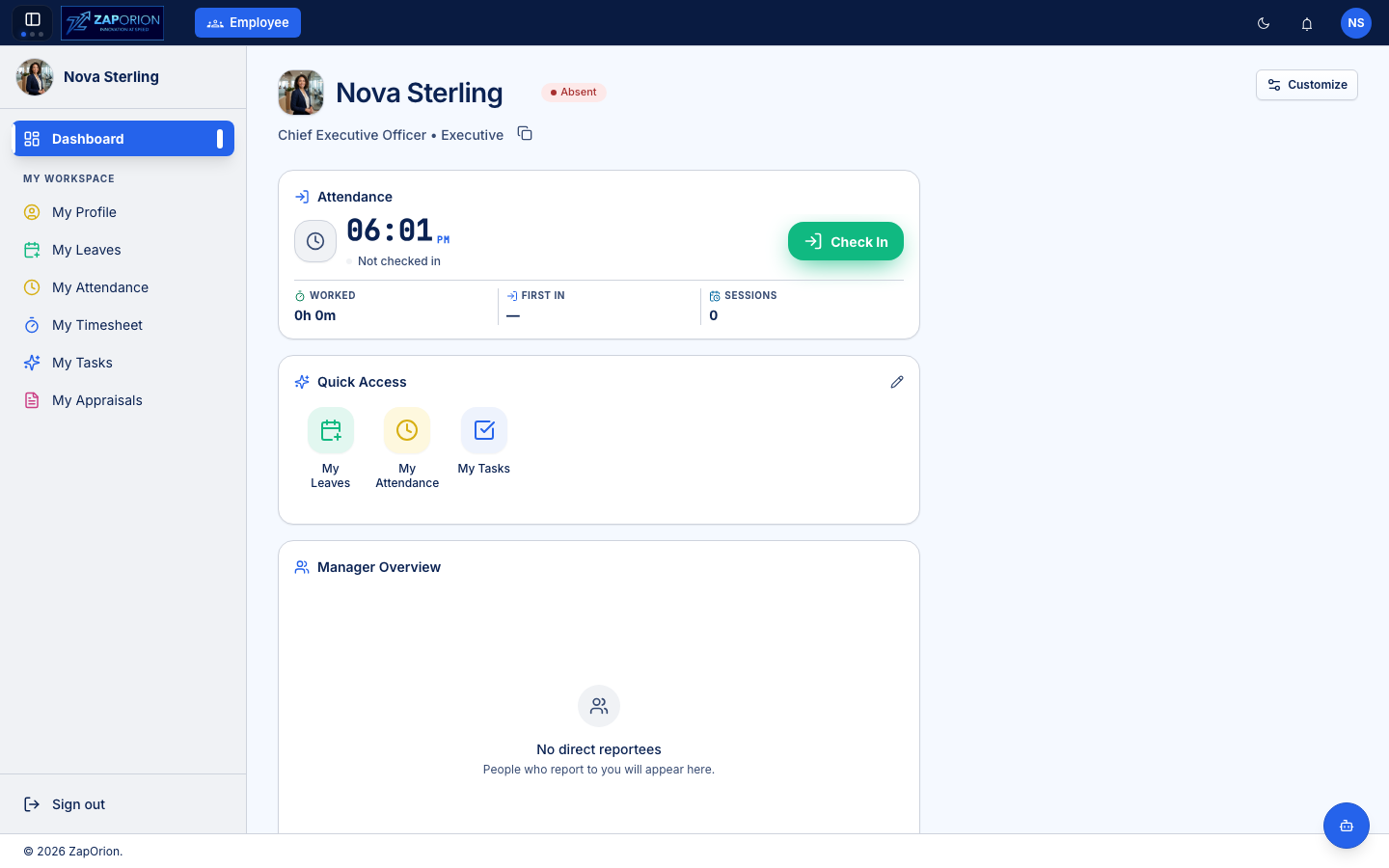
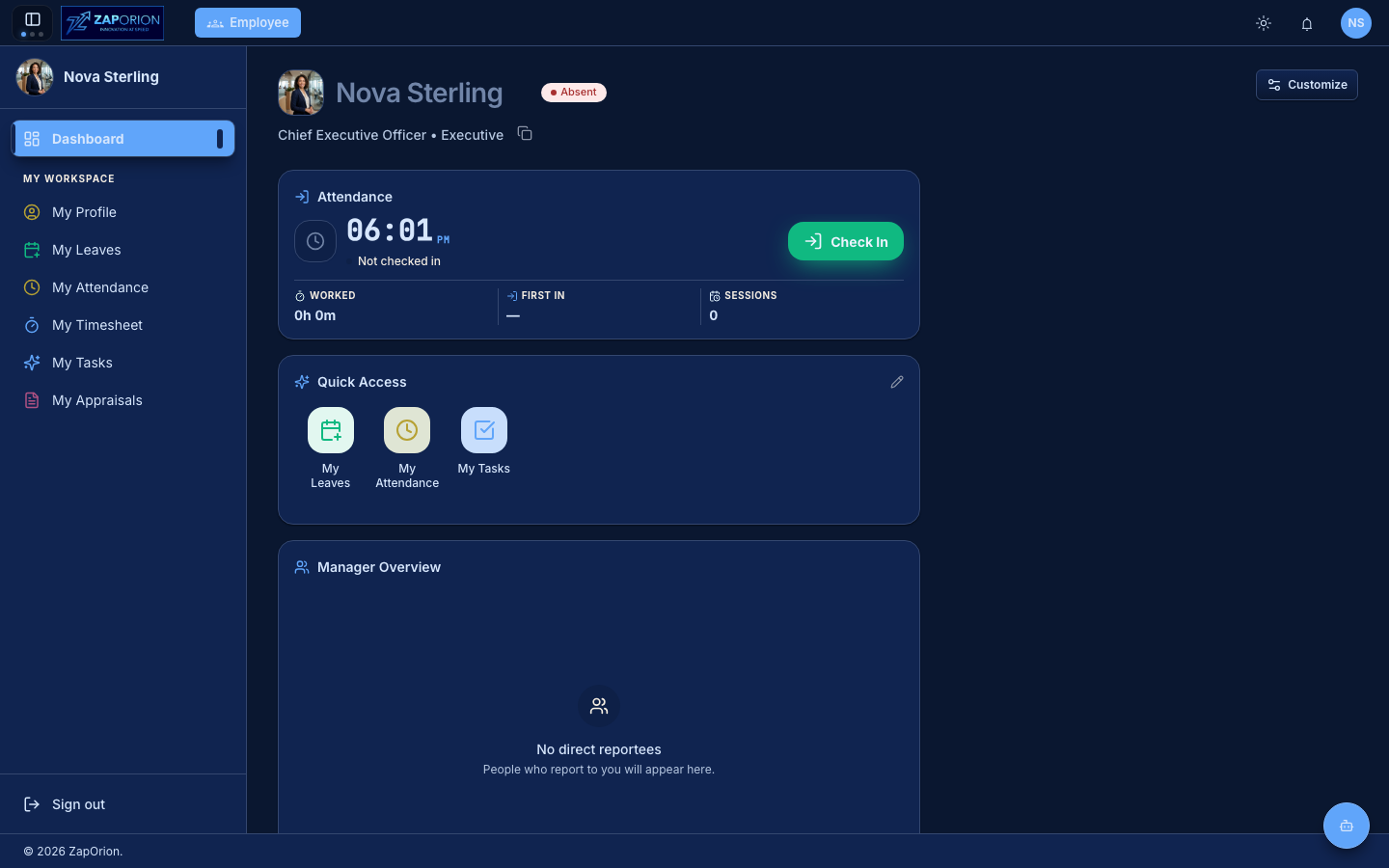
The top bar
From left to right:
- Sidebar toggle — collapse or expand the left sidebar.
- Company logo and the module switcher (e.g. Employee). Organizations that run more than one Zaporion module (Inventory, Production, …) switch between them here.
- Search pill (
Search ⌘Kon Mac,Ctrl Kelsewhere) — opens global search. See below. - Theme toggle (moon/sun) — switch between light and dark mode. See Personalizing the App.
- User management (admin only) — opens user and role administration.
- Notifications bell — in-app notifications such as approvals waiting for you. A red badge shows the unread count.
- Your avatar — profile shortcut.
Global search (⌘K / Ctrl+K)
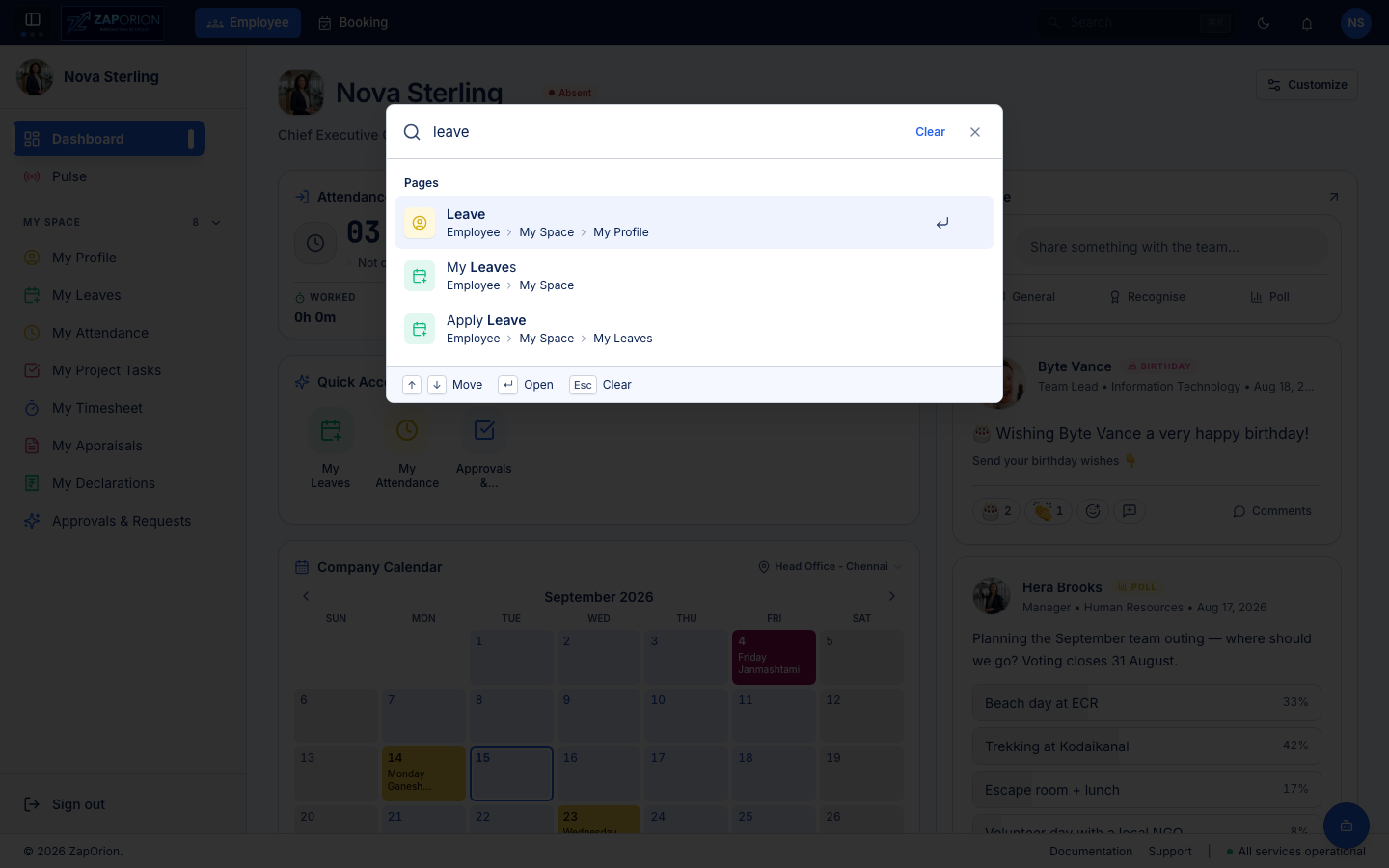
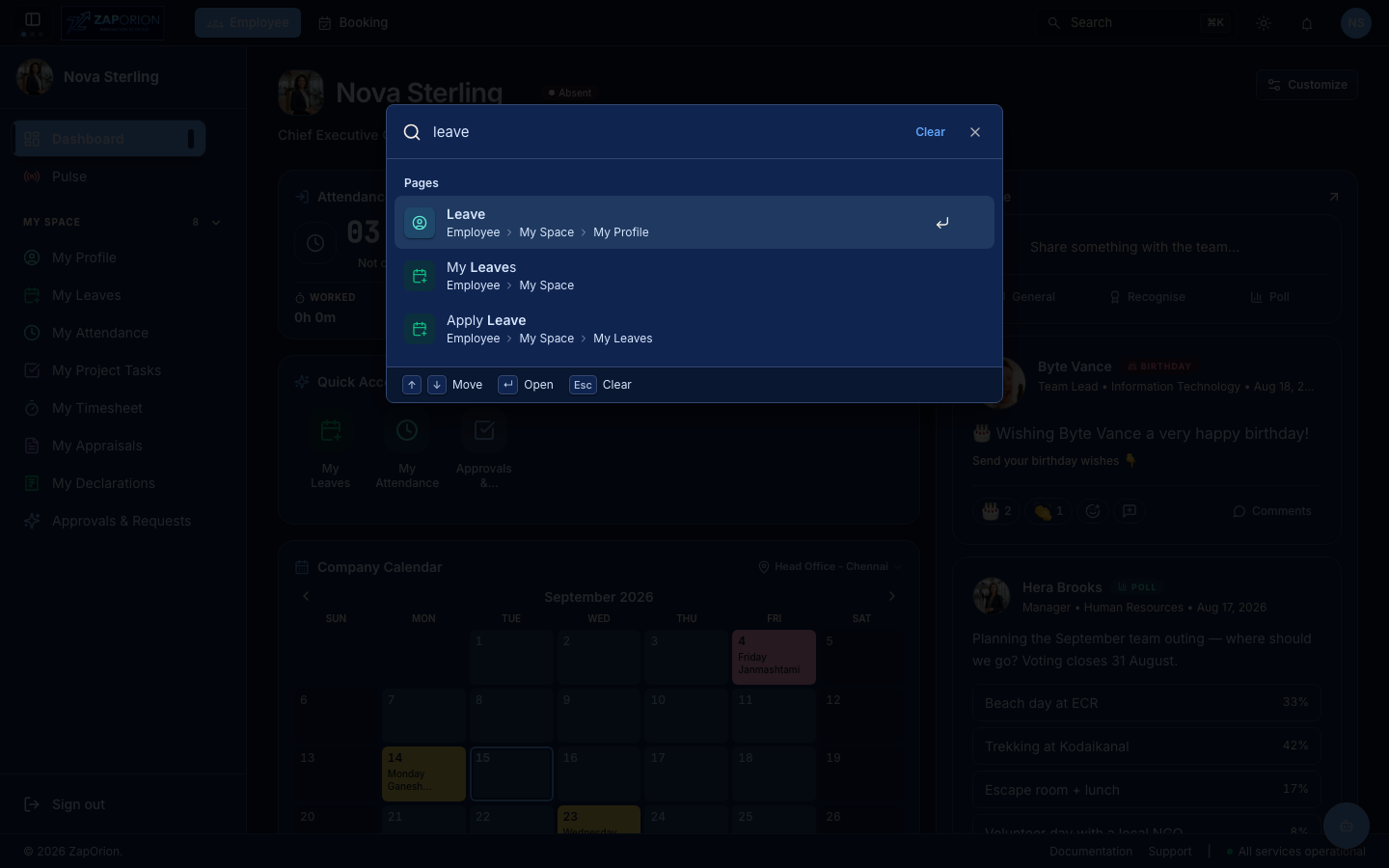
Press ⌘K (Mac) or Ctrl+K (elsewhere) — or click the Search pill in the top bar — to open the search palette from anywhere. Type to filter; results are grouped into sections:
- Pinned — pages you pinned (hover any sidebar item and click the pin icon, or pin from the palette itself; pins sync between the two).
- Recent — pages you visited lately.
- Pages — every sidebar page, with its breadcrumb (e.g. Employee › My Space › My Leaves), including deep links to individual tabs such as Statutory › ESI (
/statutory?tab=esi). - People — employee directory hits (name, designation, department) for those who can view them.
↑/↓ move, ↵ opens, Esc clears/closes. Search matches page names, tab names and aliases (e.g. "staff" finds People), not just prefixes.
The sidebar
The sidebar is your main navigation. Groups are collapsible (click the group header; the open state is remembered) and only the sections your role unlocks are visible. Hover any item for its pin icon — pinned pages gather in a Pinned section at the top and stay in sync with global search.
| Section | Who sees it | Contents |
|---|---|---|
| (top) | Everyone | Your photo and name (click for My Profile), Dashboard, Pulse |
| My Space | Everyone | My Profile, My Leaves, My Attendance, My Project Tasks, My Timesheet, My Appraisals, My Declarations, Approvals & Requests |
| Manage Team | Managers with reportees | Team Leaves, Team Attendance, Team Appraisals, Team Timesheet |
| Manage Operations | HR / operations staff | People, Leave Balances, Attendance (uploads), Assets, Projects, Goals & Assessments, Documents |
| Administration | Administrators | Masters, Configuration, Leave & Attendance, Workflow, Notifications, Employee Lifecycle, Roles & Permissions |
| Monitor | Administrators | Activity Logs, Outbox Events |
Only My Space opens by default (plus whichever group holds the current page). The currently active page is highlighted. Sign out is pinned to the bottom.
The Payroll module has its own sidebar once you switch modules: Dashboard, Masters (Pay Components, Salary Structures, Pay Groups, GL Mappings, Bank Profiles), Employees (Payroll Employees, Payroll Attendance, Salary Assignment), Pay Runs (All Runs, Adjustments), Statutory (PF / ESI / PT / TDS, Declarations), Loans & Claims (Loans, Reimbursements), Administration (Activity Logs, Role Permissions, Configuration). Payslips live on their run (/runs/:id/payslips) — there is no flat payslip list.
The currently active page is highlighted. Sign out is pinned to the bottom.
:::note Payroll now owns compensation Salary Structures, Salary Revisions and the HR review of tax declarations have moved to the Payroll module. If you don't see them here, switch modules in the top bar — they are documented in the Payroll manual. :::
Breadcrumbs
Every page shows a breadcrumb trail under the top bar (e.g.
EMPLOYEE › CONFIGURATION › MASTER SETTINGS) so you always know where you are.
Quick Access
The dashboard's Quick Access card gives one-click shortcuts to your most used pages. Click the pencil icon on the card to choose which shortcuts appear.