My Timesheet
My Space → My Timesheet — log hours against project tasks, one week at a time.
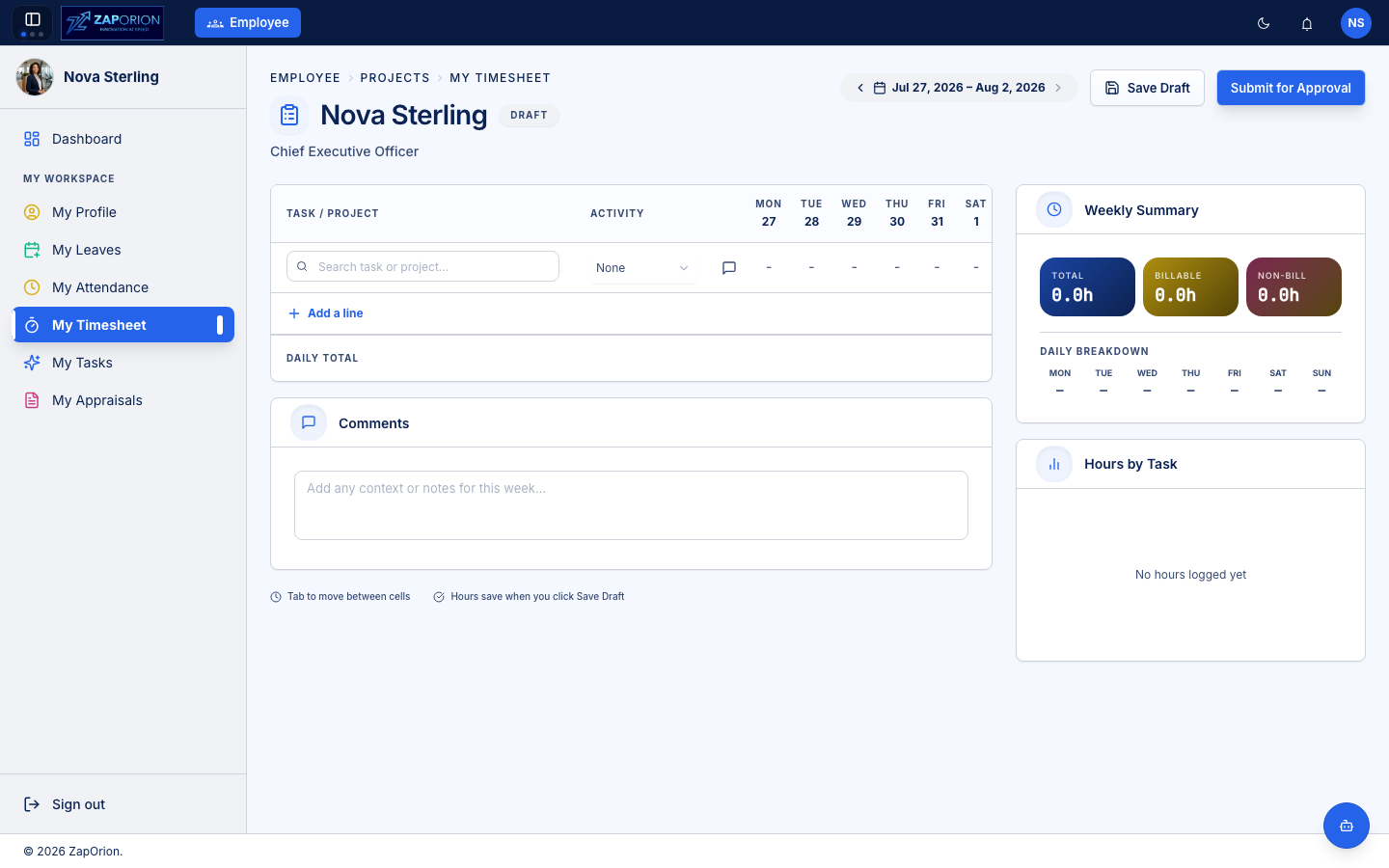
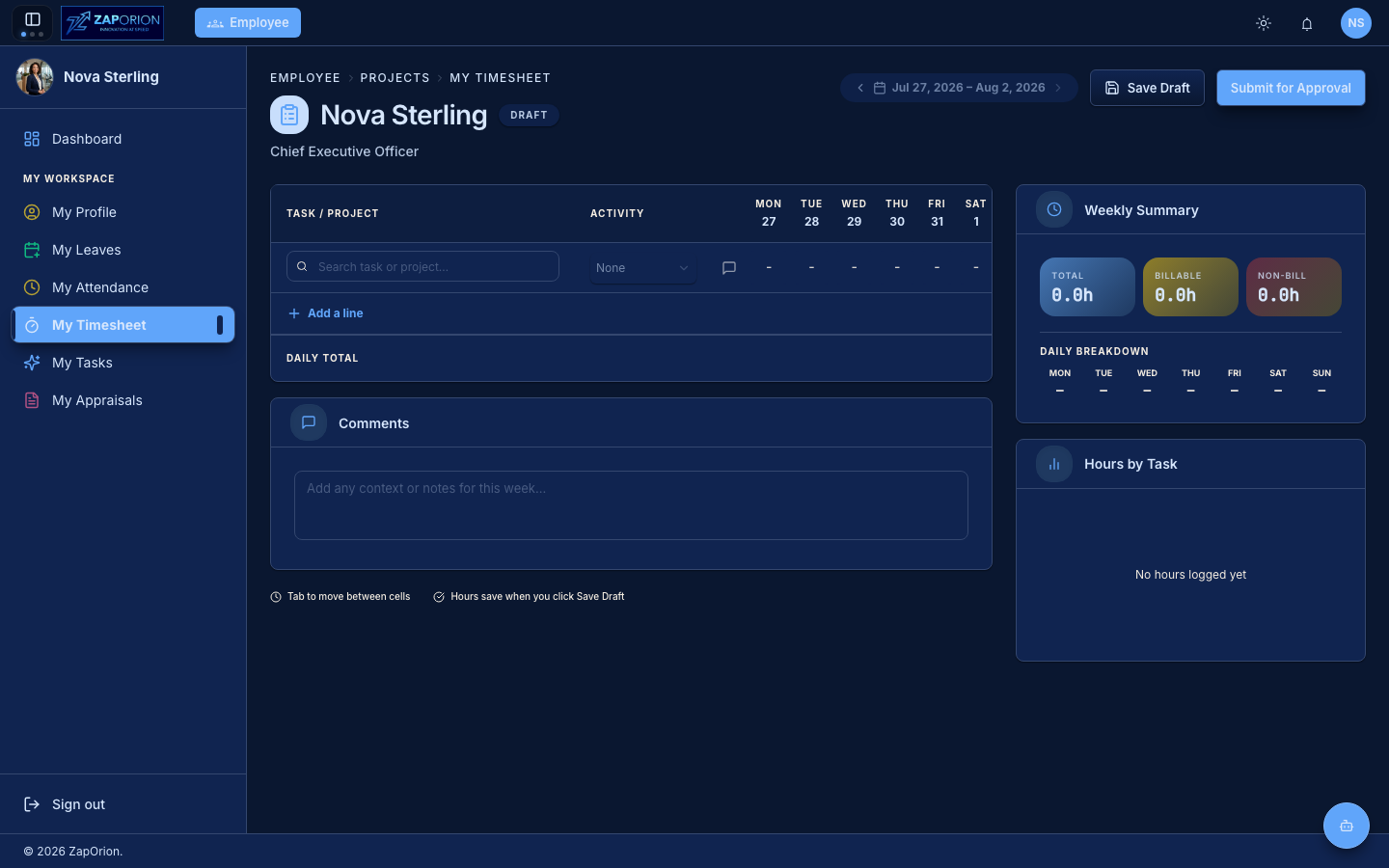
Filling in your week
- Use the week selector at the top to pick the week.
- Click Add a line, then search for the task or project you worked on. You can only log time against projects you are allocated to.
- Choose an Activity type (development, testing, meetings, … as configured by your organization).
- Enter hours in the day cells. Press Tab to move between cells.
- Add optional Comments for the week.
- Click Save Draft as you go. Hours are saved when you click Save Draft.
Submitting for approval
When the week is complete, click Submit for Approval. The status badge next to your name changes from Draft to Submitted, and your manager reviews it in Team Timesheet.
- While Submitted the timesheet is read-only.
- If it is rejected, it returns to Draft with the reviewer's comments so you can correct and resubmit.
Weekly summary
The right-hand panel totals your week — Total, Billable and Non-billable hours, a per-day breakdown, and an Hours by Task chart.