My Shifts
My Space → My Shifts (/leave/shifts/mine) — see the shift you work, the
changes coming up, and ask for a different shift or a swap with a colleague.
Requires employee:read.
What the page shows
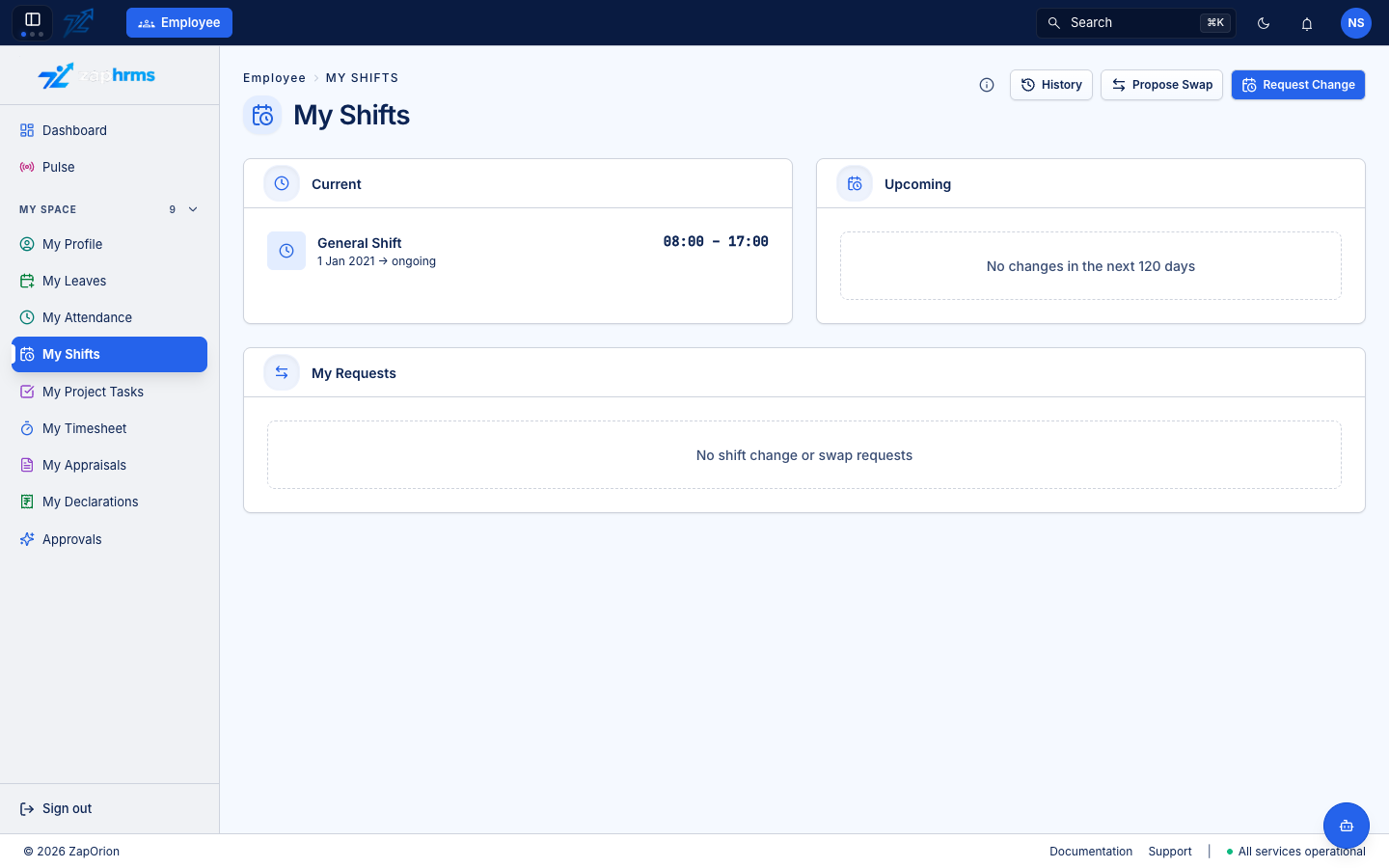
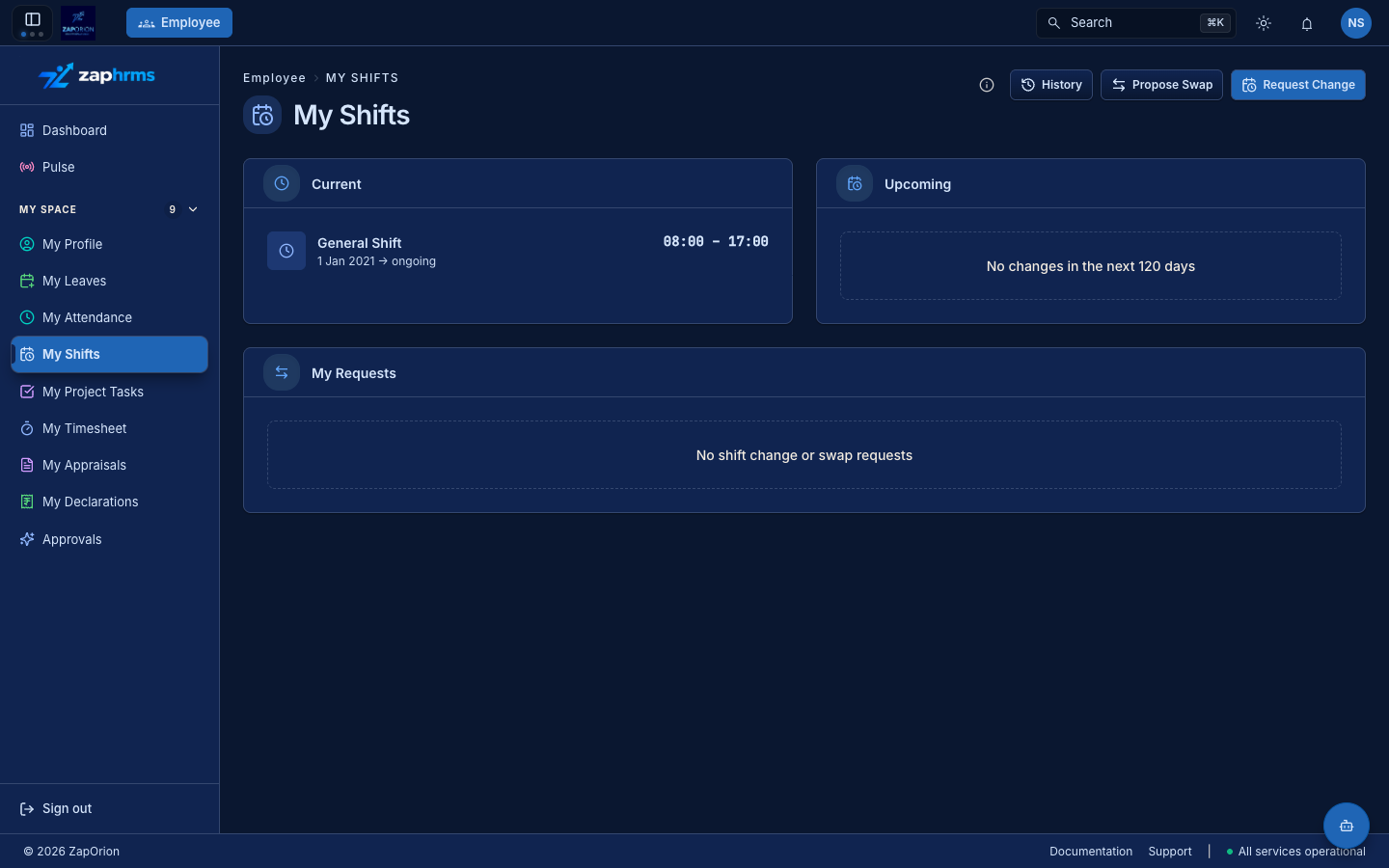
- Current — your shift today: its name, hours and the range it applies to (for example 1 Jan 2021 → ongoing).
- Upcoming — any change to your shift in the next 120 days. No changes in the next 120 days means you stay on your current shift.
- My Requests — the shift change and swap requests you raised, or that a colleague asked you to join, with the undecided ones first. Each shows its status and, for a swap, the step it is on.
The header buttons are History (your full shift history on your profile), Propose Swap and Request Change. The i icon opens a help panel that explains night shifts, the swap rules and backdating.
Requesting a different shift
Use this when you want to move your own working days to another shift.
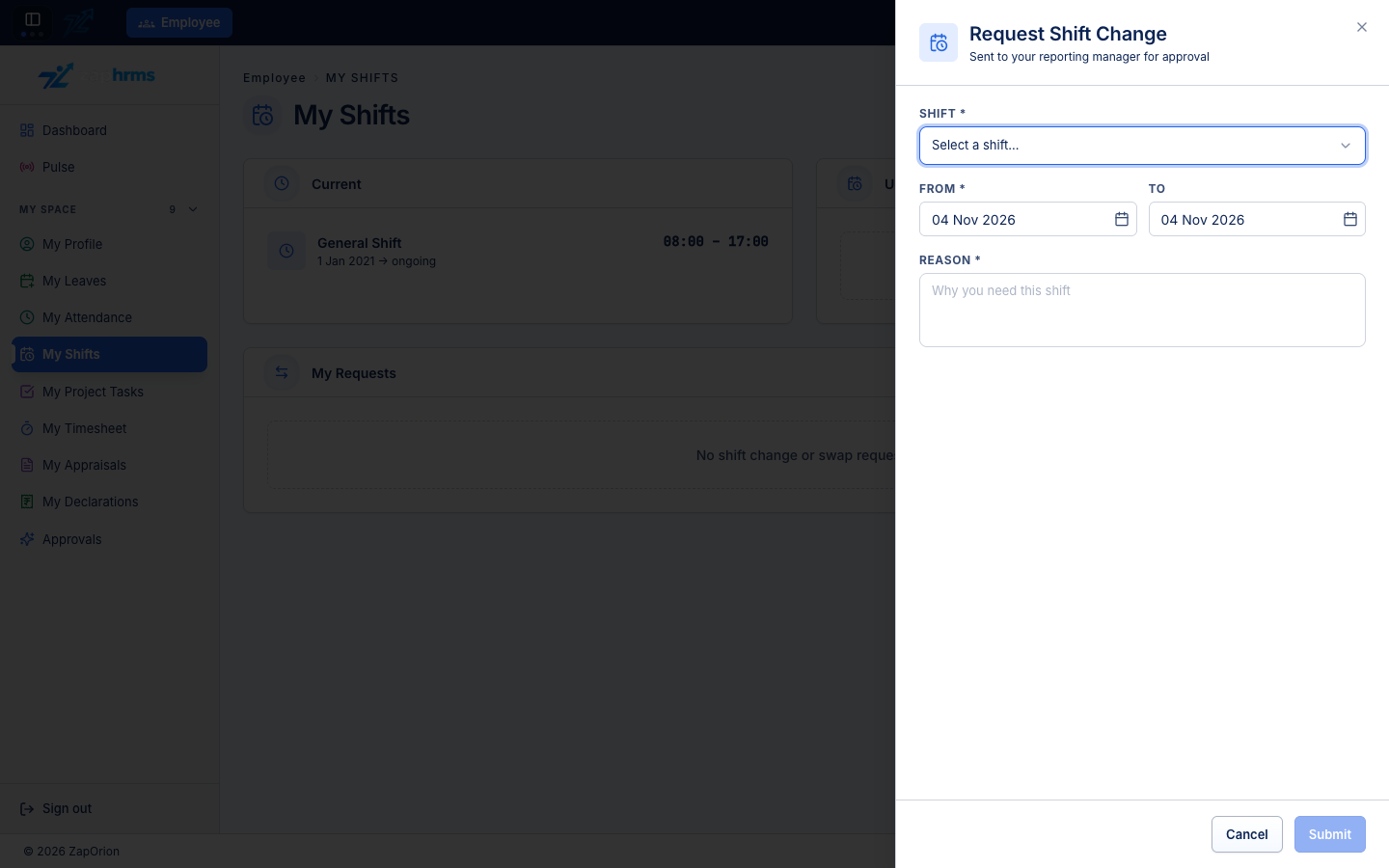
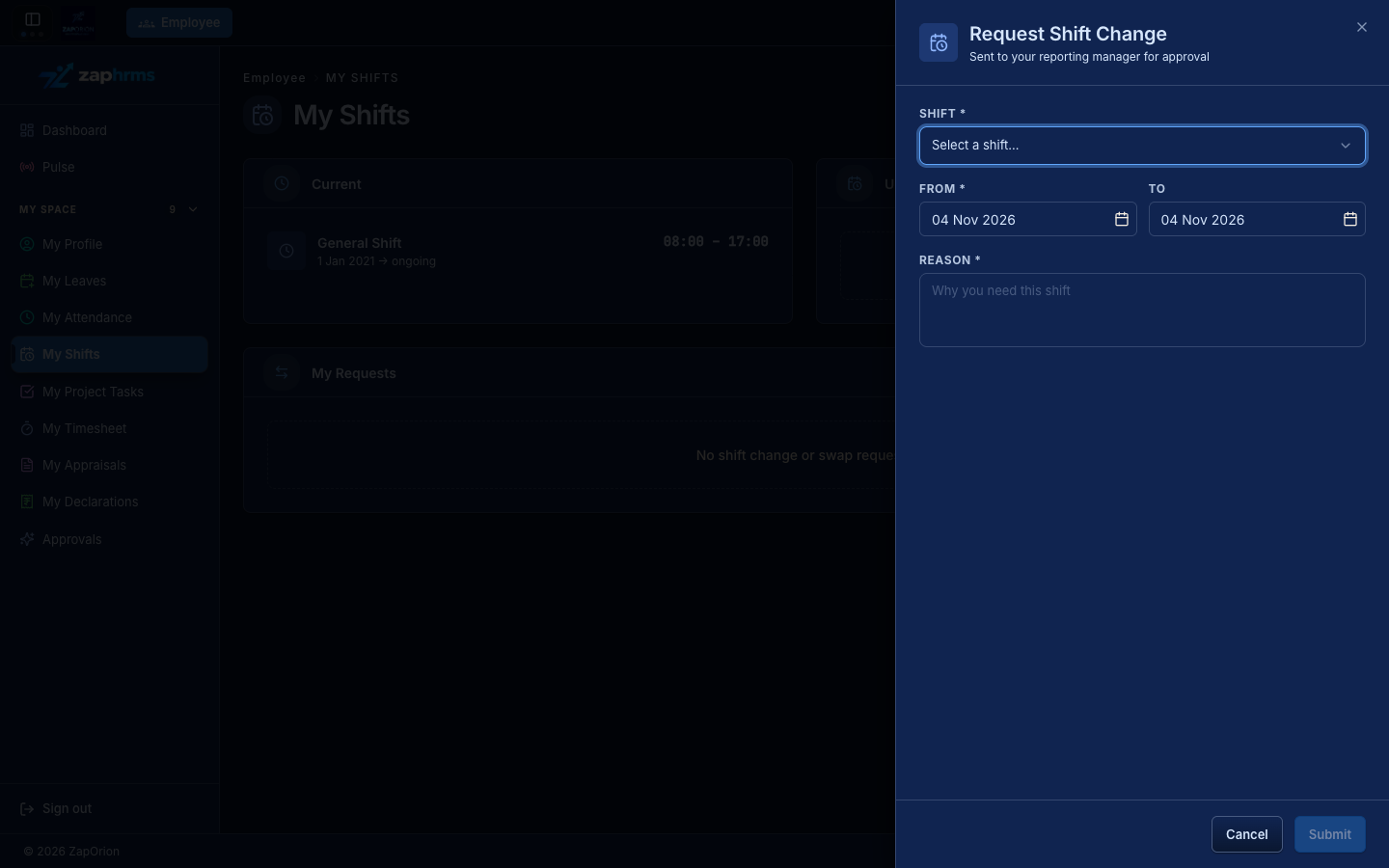
- Click Request Change.
- Choose the Shift you want to move to.
- Set From and To. Leave To empty if the change has no end date. A request can cover at most 366 days.
- Give a Reason (required) and click Submit.
The request goes to your approvers through the Shift Change Approval workflow. When it is approved, the new shift is applied to exactly the days you asked for — your other days are untouched.
You can only have one undecided request (change or swap) over any given day. If the new shift would alter attendance that is already calculated, the request is refused with a warning that tells you why; ask HR if the day needs to change.
Swapping with a colleague
Use this to exchange a day or a range of days with someone on a different shift.
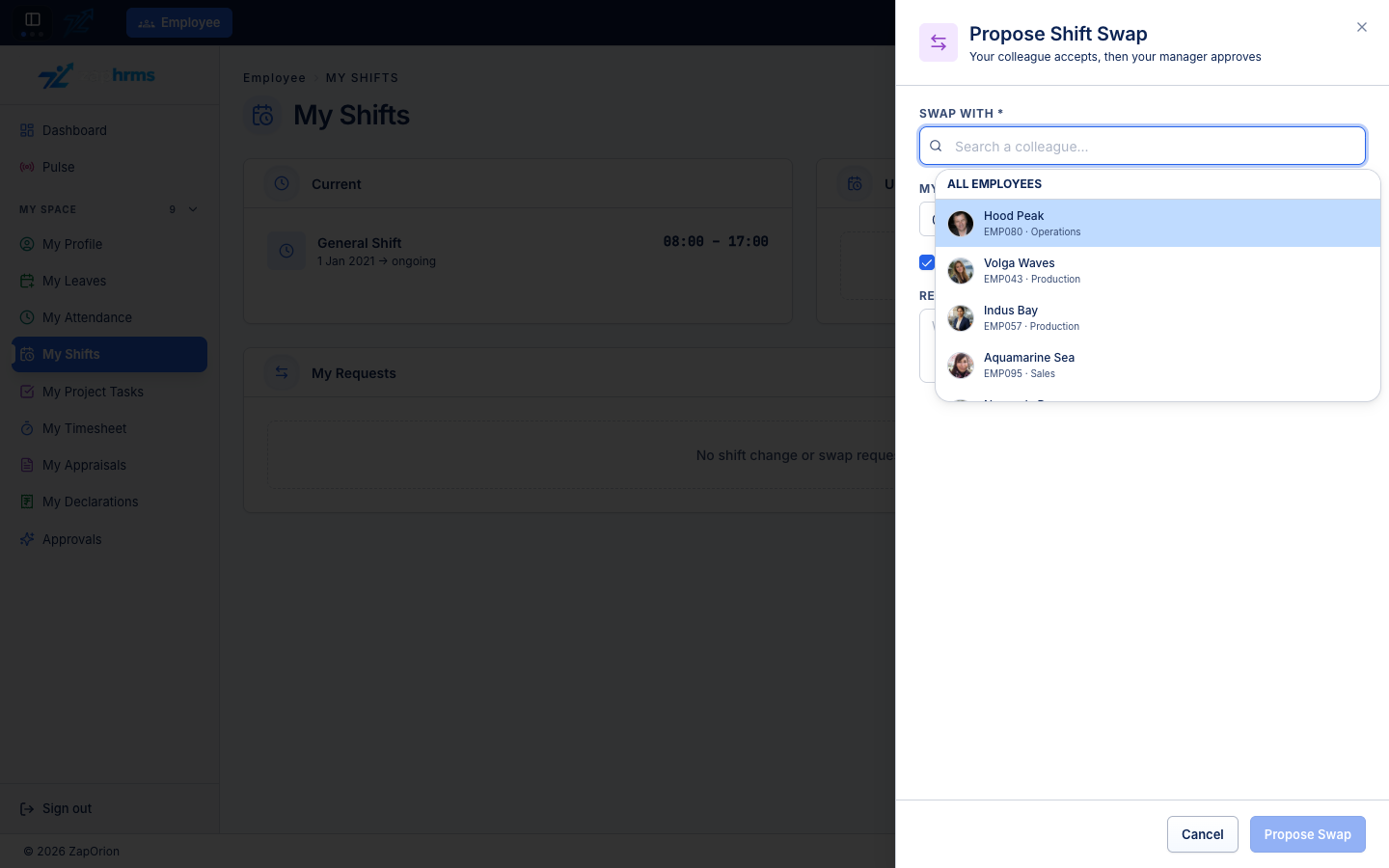
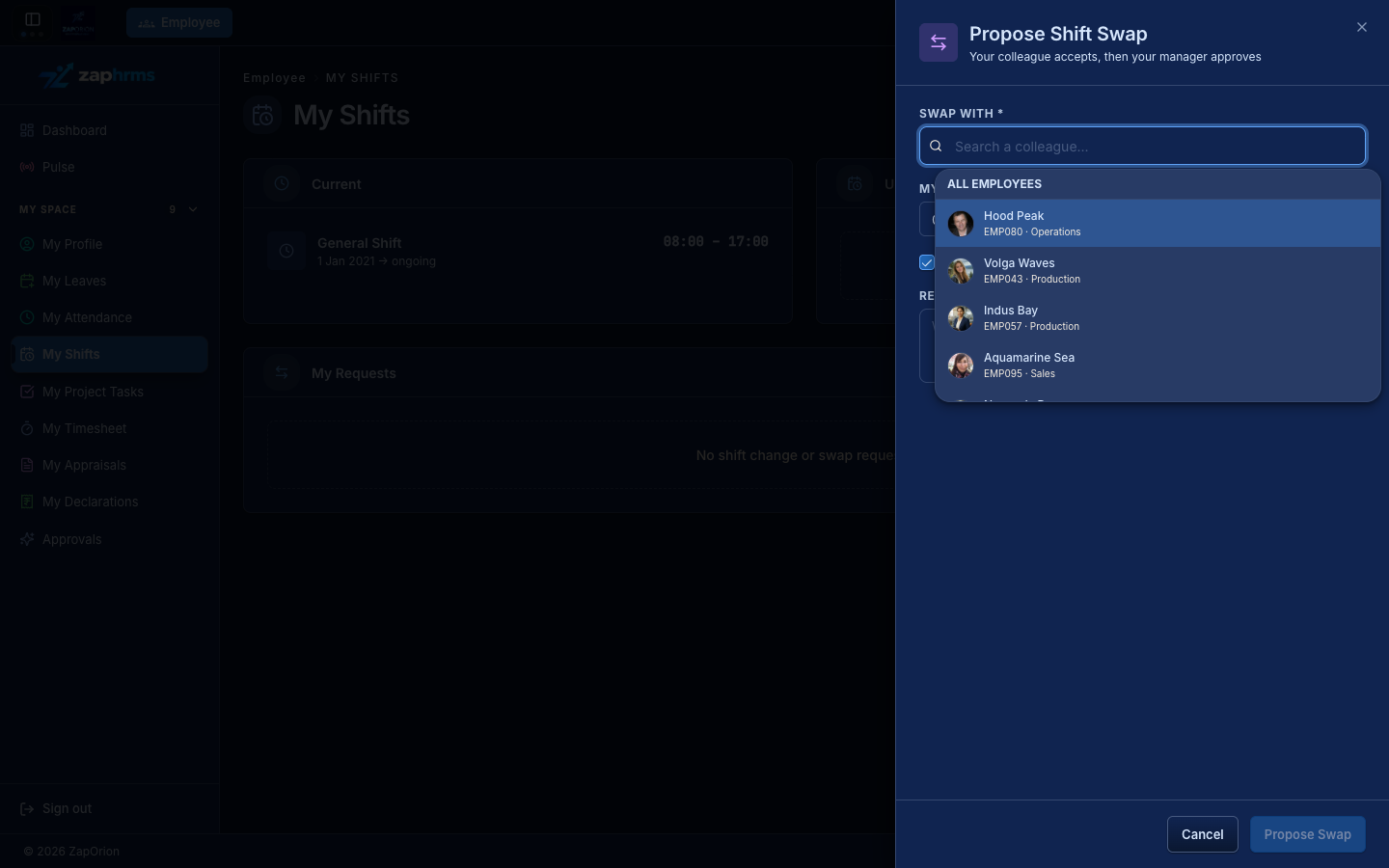
- Click Propose Swap.
- Search for the colleague in Swap with.
- Set My dates — From / To. By default Their dates are the same as mine; untick it to offer a different range on their side (both ranges must be the same length).
- Give a Reason and click Propose Swap. When both of you are on a single shift for those days, a preview shows what You take and what your colleague takes.
A swap has two steps:
- Your colleague accepts (or declines). They see the request under Approvals and on their own My Shifts page, where Respond takes them to it.
- Your manager approves. Only then are both rosters changed, together.
A swap is refused if you pick yourself, a colleague who has left, ranges of different lengths, days where either of you is not on one single shift, or two people already on the same shift.
Withdrawing a request
While a request is still pending you can withdraw it from My Requests. Withdrawing closes the approver's task, so it cannot be approved afterwards.
:::note If HR changes your days If HR assigns a different shift to the same days while your request is waiting, the request becomes stale: it can no longer be approved and has to be raised again. :::
See also: Team Roster for the whole team's shifts, and Leave & Attendance for how shifts are set up.