My Leaves
My Space → My Leaves — apply for leave and track your requests and balances.
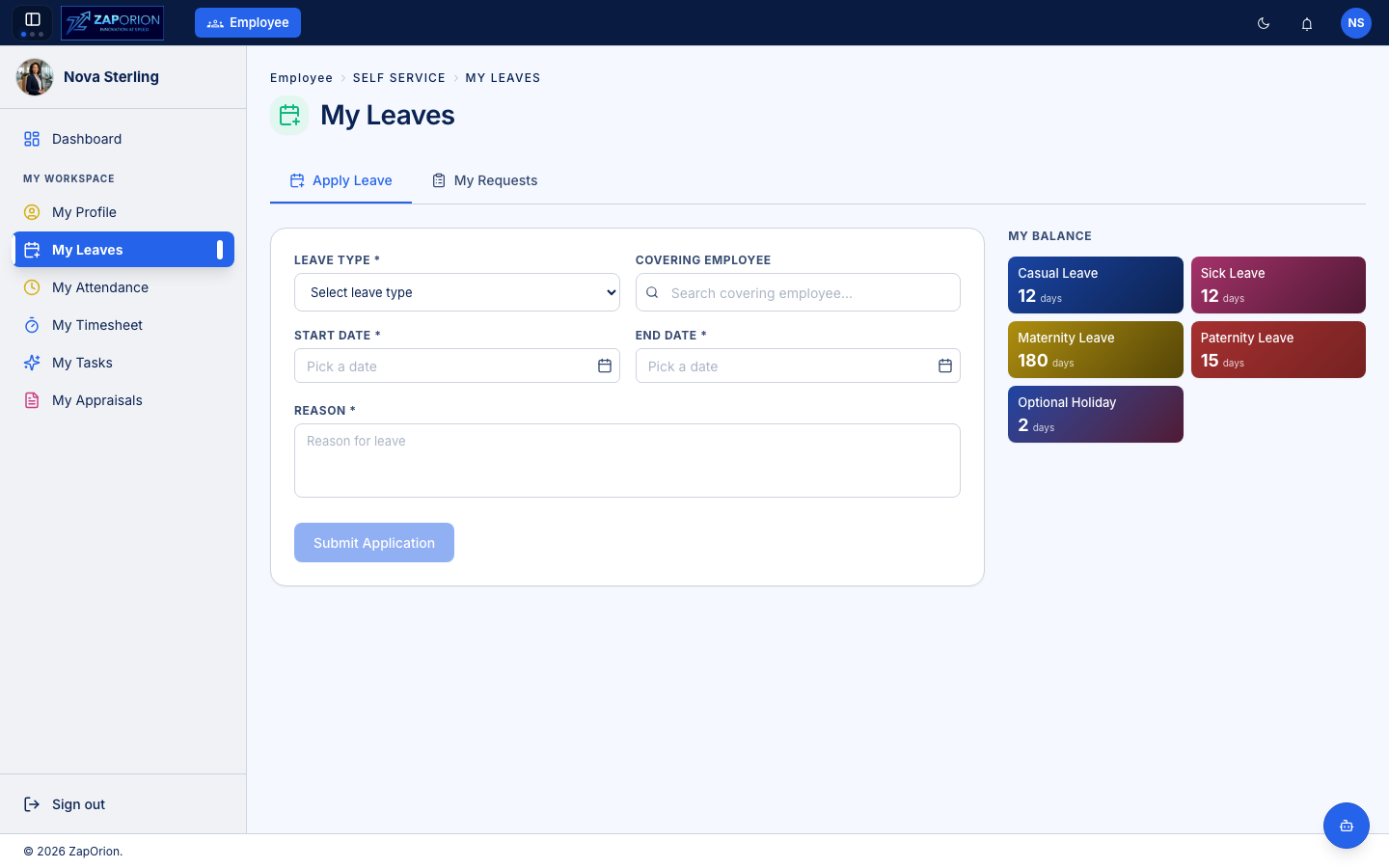
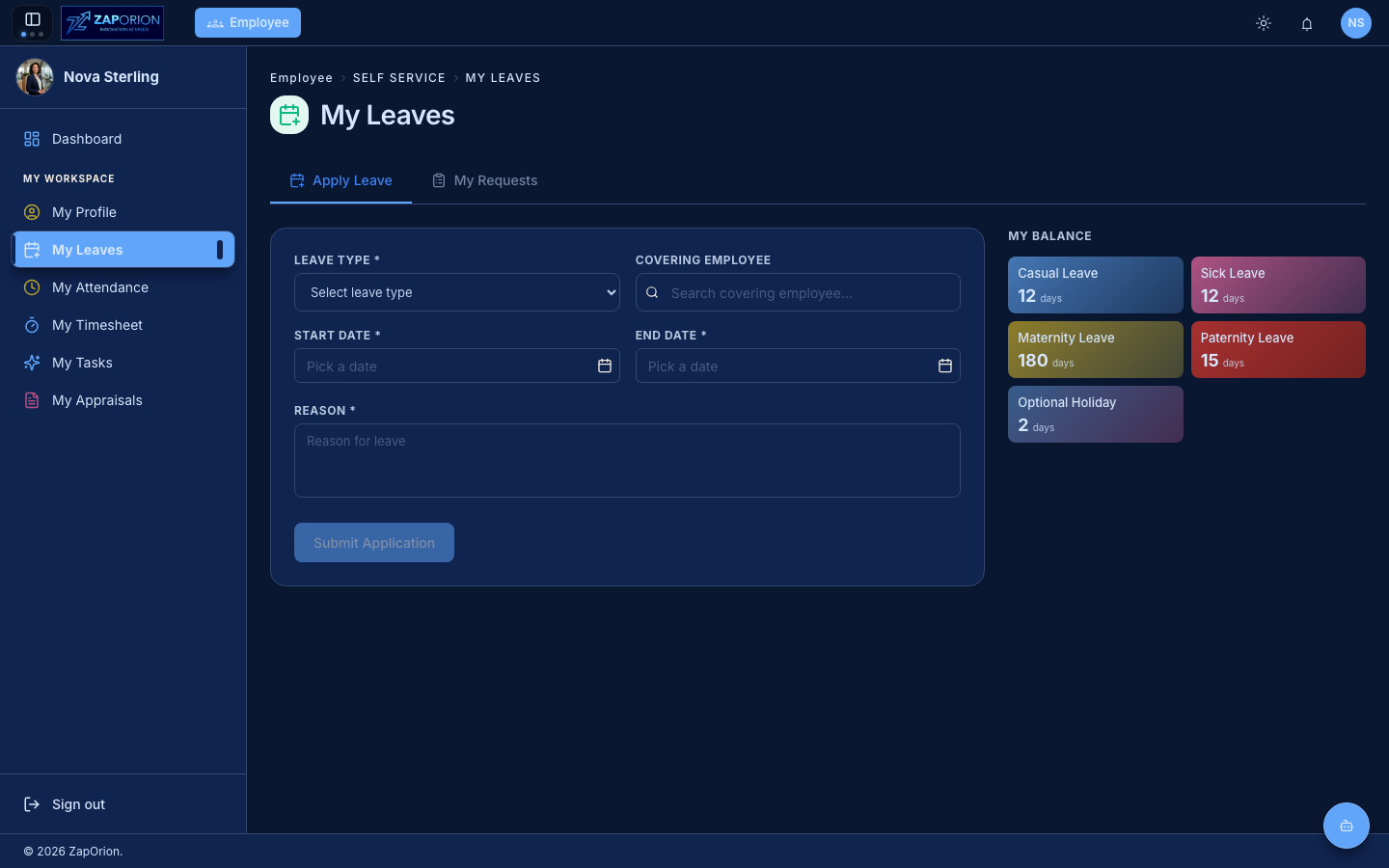
Applying for leave (?tab=apply)
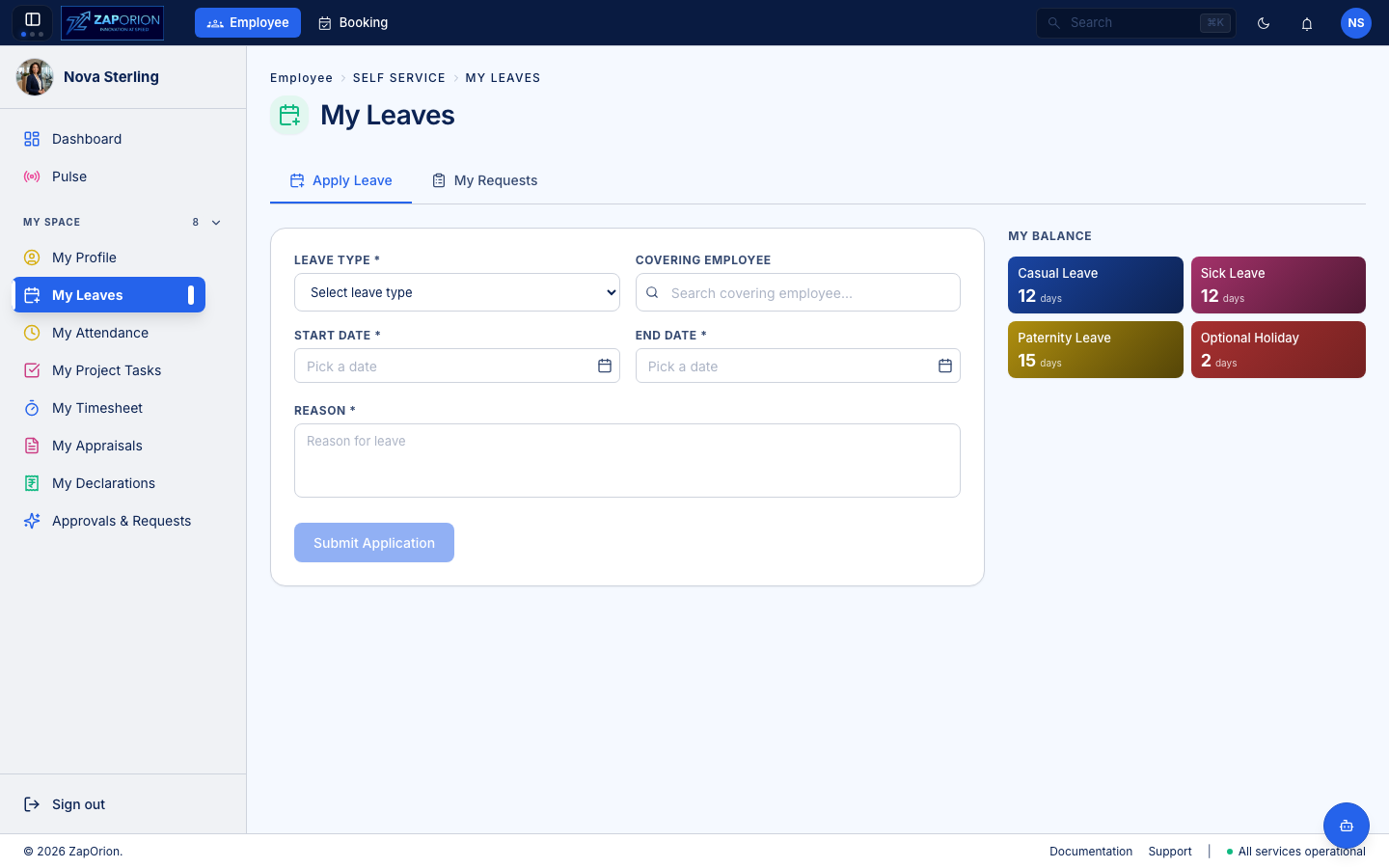
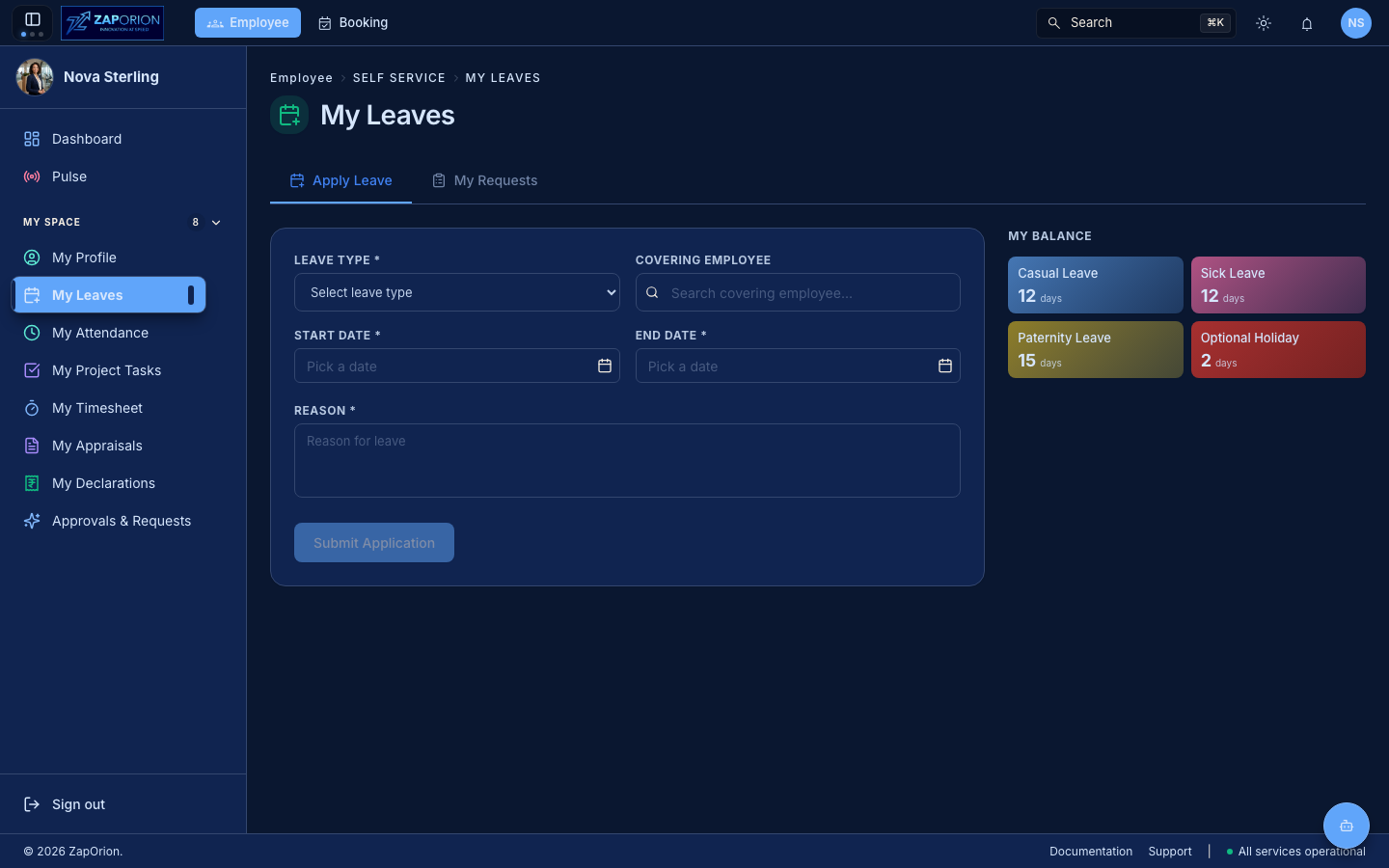
- Open the Apply Leave tab.
- Choose the Leave Type (Casual, Sick, Earned, …). Your remaining balance for each type is shown in the My Balance cards on the right.
- Optionally pick a Covering Employee who will handle your work while you are away. They can see the request under Covering Leaves.
- Pick the Start Date and End Date. Half-day leave is supported for leave types that allow it.
- Enter a Reason and click Submit Application.
The request is routed through the leave approval workflow (normally your manager). You'll be notified when it is approved or rejected.
Tracking requests (?tab=requests)
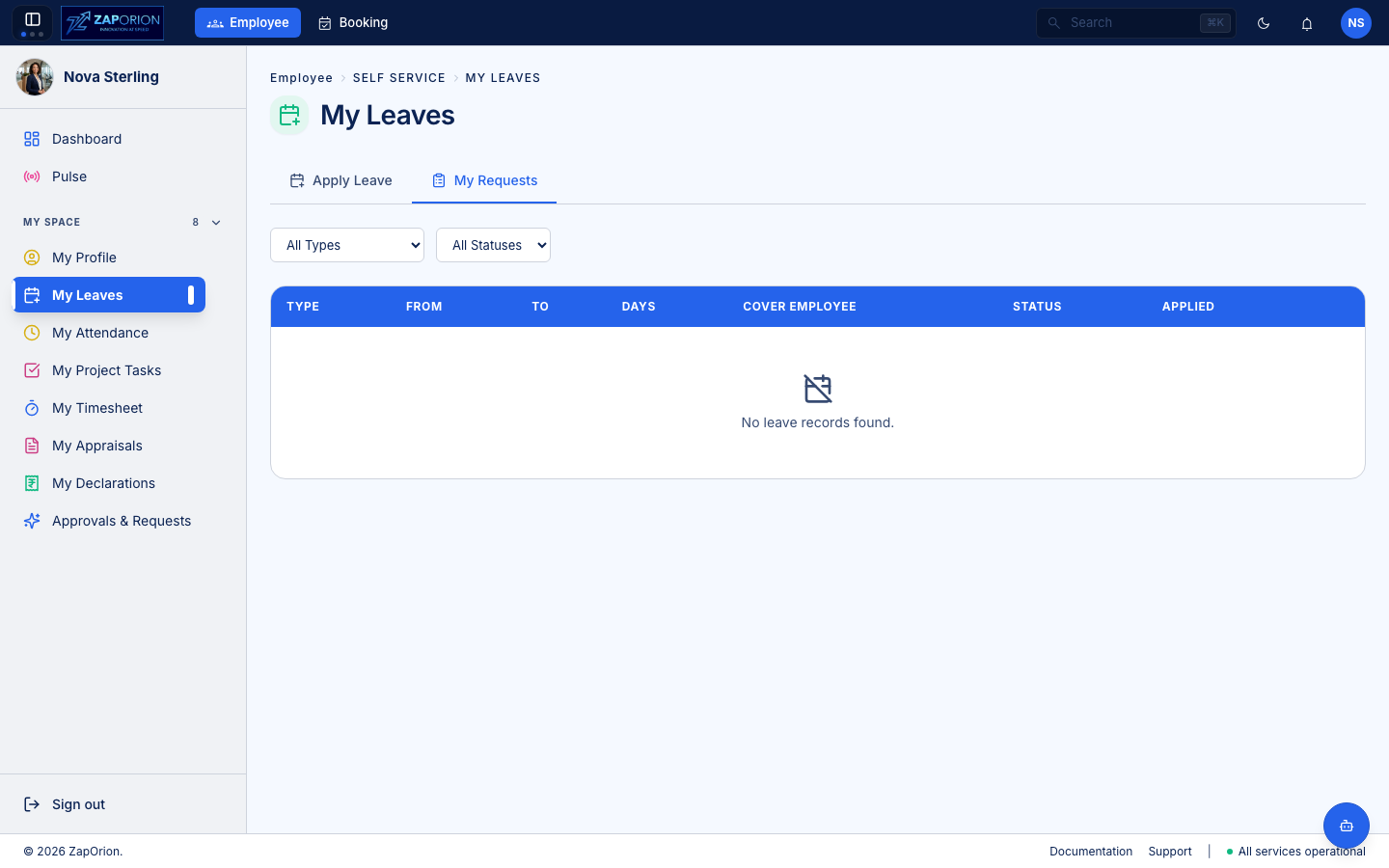
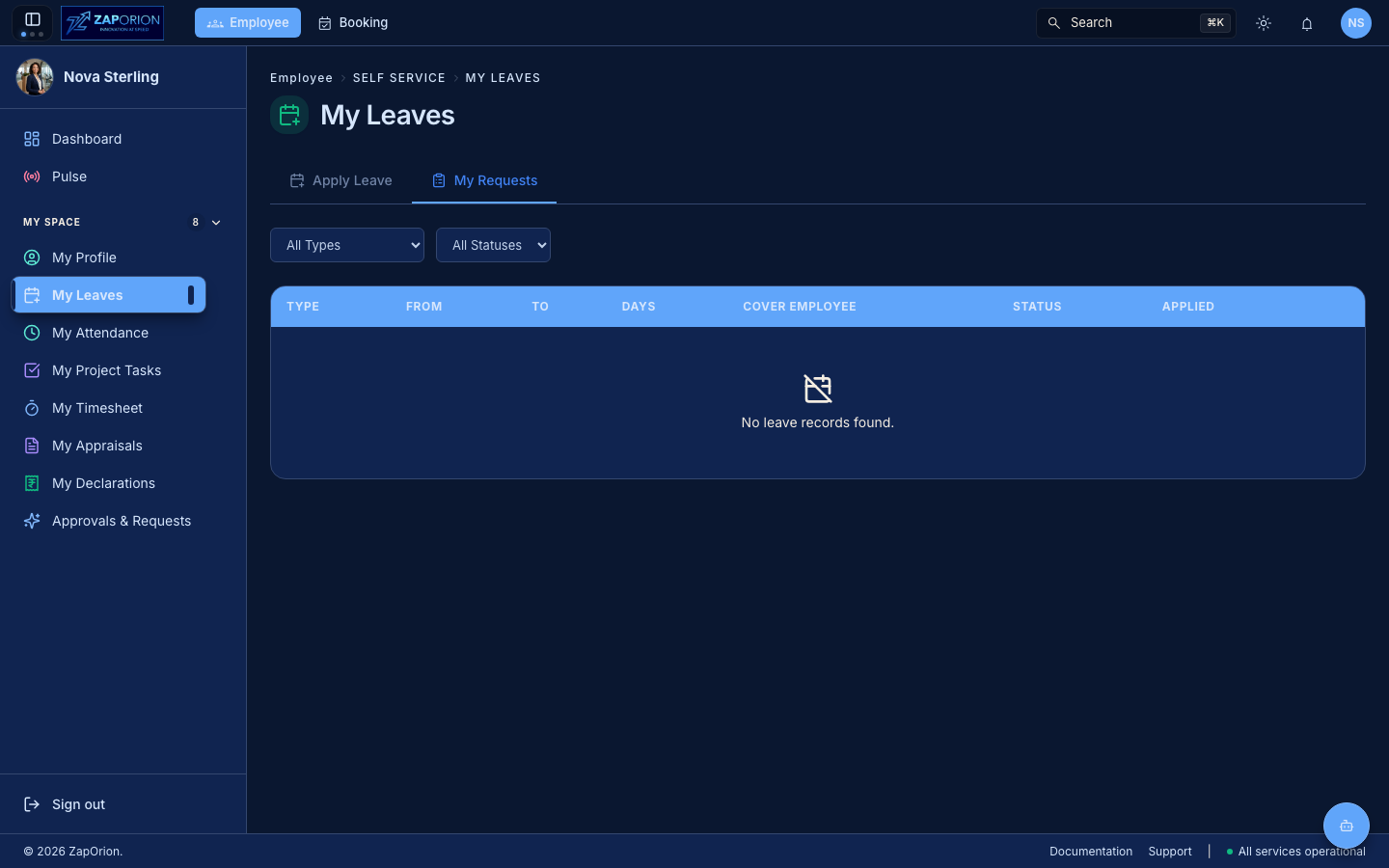
The My Requests tab lists all your leave applications with their current status — Pending, Approved, Rejected or Cancelled. You can cancel a pending request from here.
Understanding balances
- Balances are per leave type and per year, allocated by HR (fixed quota) or accrued monthly, depending on the type.
- Half-day units are shown as
0.5. - If a type doesn't appear, it isn't applicable to you (for example location-specific holiday types).
tip
Your leave shows up automatically in your manager's Team Leaves calendar and, once approved, in your My Attendance calendar as a Leave day.